


PREVENT TRUSTED SENDERS FROM BEING BLOCKED
听
By adding email addresses and domain names that you trust to the Safe Senders List, you instruct Outlook that messages from those sources are never to be considered as junk. If you belong to mailing lists or distribution lists, you can add these names to your Safe Recipients List.
Microsoft Outlook PC Client Instructions
To add a person to the Safe Senders List, click a message from the sender, and then click听Home. In the听Delete听group, click听Junk, and then click听Never Block Sender.

To add an email address or domain to the Safe Recipients List, click a message from the sender, and then click听Home. In the听Delete听group, click听Junk, and then click听Never Block this Group or Mailing List.
If you don鈥檛 have a message from the person, you can still manually add email addresses or domains to these lists by doing the following:
-
Click听Home.
-
In the听Delete听group, click听Junk, and then click听Junk Email Options.
-
Do one of the following:
-
To add safe senders, on the听Safe Senders听tab, click听Add.
-
To add safe recipients, on the听Safe Recipients听tab, click听Add.
-
-
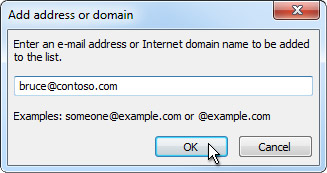
In the听Enter an email address or Internet domain name to be added to the list听box, enter the name or address that you want to add. For example, you can add:
-
a specific email address, such as someone@example.com
-
an Internet domain, such as @example.com, or example.com
-
-
Click听OK听and repeat for each entry that you want to add.
-
If you want all听Contacts听to be considered safe senders, select the听Also trust email from my Contacts听check box on the Safe Senders tab.
-
Some people whom you correspond to might not be listed in your Contacts. If you want all such people to be considered as safe senders, select the听Automatically add people I email to the Safe Senders List听check box.
-
If you have existing lists of safe names and addresses, you can move that information into Outlook. Click听Import from File听and browse for the list file that you want. To create a file that uses your current list, click听Export to File听and then specify where you want the new file saved.
-
To change a name on either list, click the name that you want to change and then click听Edit. To remove a name, click the name that you want and then click听Remove.
-
If you are using a Microsoft Exchange Server account, all of the names and email addresses that are in your organization's address book听鈥� also known as the Global Address List听鈥� are automatically considered safe.
Outlook on the Web
Note: Mac Outlook users must use outlook on the web听听
-
听Go to听 and select the outlook application.听听

-
At the top of the page, select听Settings
 听>听Mail.
 -
Under听Options, select听Block or allow.
-
To add an entry to听Safe senders and recipients, enter the email address or domain that you want to mark as safe in the听Enter a sender or domain here听text box, and then press Enter or select the听Add听icon听
 听next to the text box.
-
For example, to mark all email from addresses that end in contoso.com as safe, enter听contoso.com听in the text box.
-
To mark a specific person as safe, enter that person's full email address. For example, to mark all messages from KatieJ@contoso.com as safe, enter听KatieJ@contoso.com听in the text box.
-
-
(Optional) Select the听Trust email from my contacts听check box to treat email from any address in your contacts folders as safe.
- Select听Save听to save your changes.
Remove听a听Sender听or听Domain From听the听Safe Senders List
-
To remove an entry from听Safe senders and recipients, select the entry and select听Remove.
-
Select听Save听to save your changes.